01
Before you start
- Download the Okapi Capture Pro ZIP from Payhip and extract all files before opening the program.
- For video, confirm that the monitor you want to record is connected and visible in Windows Display settings.
- Choose an easy-to-find output folder and make a short test capture before an important recording.
Windows installation: Download the customer ZIP from Payhip, extract all files, and run OkapiCapturePro_3_2.exe from the extracted folder.
02
Step-by-step
- 1
Open Okapi Capture Pro and choose Screenshot or Video on the opening screen.
- 2
For a screenshot, choose Area, Window, Full Screen or Monitor, then select the screen content you want.
- 3
For video, open Monitor selection, choose All monitors or a specific monitor, and use Identify monitor when you need to see the Windows-style monitor numbers.
- 4
Set the delay with the minus and plus controls when you need time to arrange the screen before capture begins.
- 5
Click Rec to begin video recording. The red indicator blinks while recording; the main window remains open and the recording panel stays on the same monitor.
- 6
Click Stop to finish. Okapi Capture Pro opens the output location so you can find the saved MP4.
- 7
For screenshots, select Edit Image to reveal markup controls. Choose the drawing color and size, then add the marks you need.
- 8
Use Save, Copy, Print, Pin, PDF or Share to finish the screenshot workflow.
- 9
Open Instructions inside the program whenever you need control-by-control guidance.
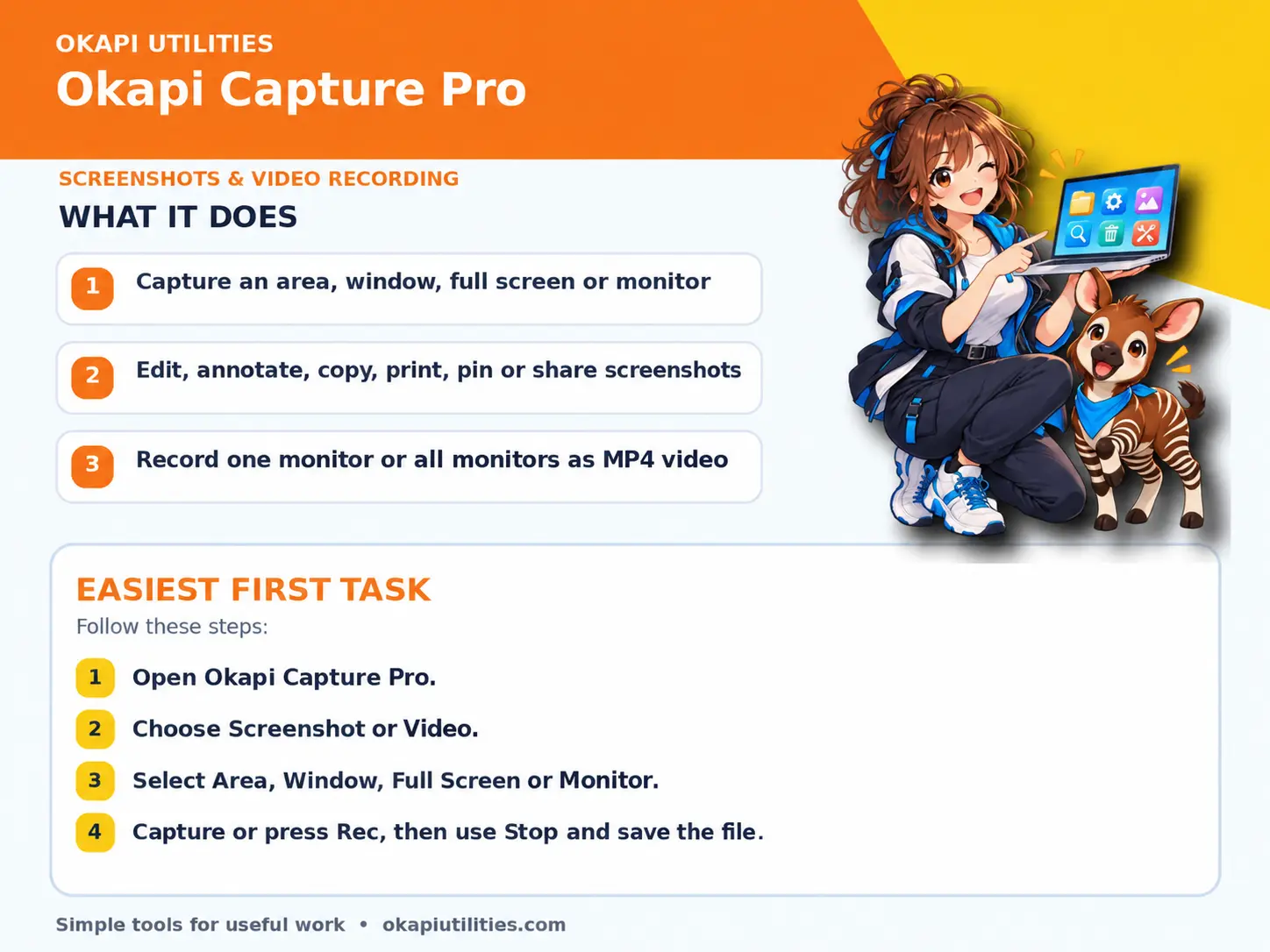
VISUAL QUICK GUIDE
Anime Quick Guide
Main features and the easiest first task, on one printable sheet.
03
What each main feature does
Use this feature as part of the numbered workflow above. Review the on-screen result before saving, downloading or continuing.
Use this feature as part of the numbered workflow above. Review the on-screen result before saving, downloading or continuing.
Use this feature as part of the numbered workflow above. Review the on-screen result before saving, downloading or continuing.
04
Save or export your work
Screenshots and MP4 recordings are saved in the selected output location. Use a new filename when you want to preserve the original capture.
05
Troubleshooting
- If a button does nothing, complete the earlier steps and make sure the required file or device is selected.
- For Windows programs, close and reopen the program after connecting a new device.
- If recording cannot start, confirm that the complete ZIP was extracted and that Windows security did not quarantine part of the program.
- Use Identify monitor before selecting a display in a multi-monitor setup.
- Color and drawing size appear when Edit Image and a compatible markup tool are active.
- Make a brief test video and play it before recording a long session.
Your files stay on your device unless the app clearly tells you that an upload is required.