01
Before you start
- Install Okapi Chord Coach.
- Connect and power on the MIDI instrument and USB-MIDI interface.
Windows installation: Download the customer ZIP from Payhip, extract it, open the Setup file and follow the installation prompts.
02
Step-by-step
- 1
Select the MIDI input and output.
- 2
Choose three-note or four-note chords and a learning level.
- 3
Choose a key and chord type, then use ADD KEY, or select individual chords from the grid.
- 4
Optionally load a common progression and choose an inversion.
- 5
Set the tempo and number of beats allowed for each answer.
- 6
Start the lesson and play each chord before its name reaches the bottom.
- 7
Use HEAR CHORD or SHOW NOTES when help is needed.
- 8
Review accuracy, streak and average response time.
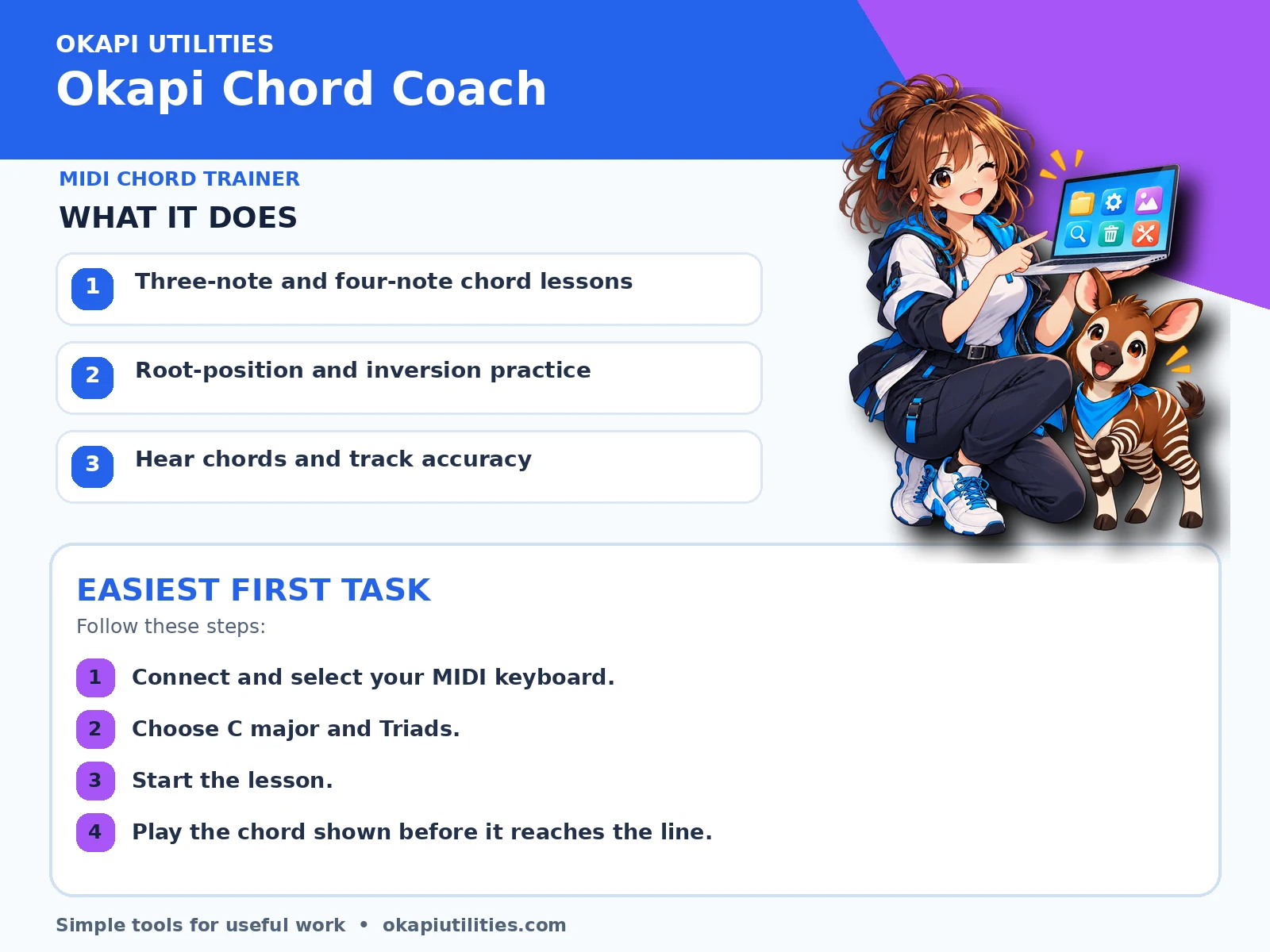
VISUAL QUICK GUIDE
Anime Quick Guide
Main features and the easiest first task, on one printable sheet.
03
What each main feature does
Use this feature as part of the numbered workflow above. Review the on-screen result before saving, downloading or continuing.
Use this feature as part of the numbered workflow above. Review the on-screen result before saving, downloading or continuing.
Use this feature as part of the numbered workflow above. Review the on-screen result before saving, downloading or continuing.
04
Save or export your work
The program records lesson results during the current session; no song file is created.
05
Troubleshooting
- If a button does nothing, complete the earlier steps and make sure the required file or device is selected.
- For Windows programs, close and reopen the program after connecting a new device.
- Practice slowly before increasing BPM.
- Use CLEAR KEY, CLEAR CHORD or CLEAR ALL to rebuild the lesson.
Your files stay on your device unless the app clearly tells you that an upload is required.