01
Before you start
- Install Okapi MIDI Recorder.
- Connect and power on the MIDI instrument and USB-MIDI interface.
Windows installation: Download the customer ZIP from Payhip, extract it, open the Setup file and follow the installation prompts.
02
Step-by-step
- 1
Select the MIDI input; the playback output normally follows the same interface.
- 2
Enter the song name, tempo and count-in.
- 3
Arm recording and begin playing, or use automatic start on the first note.
- 4
Stop the take and select it for playback.
- 5
Use transpose, full-song loop or section-loop controls while reviewing.
- 6
Watch live treble-and-bass notation and the keyboard display.
- 7
Save the performance as MIDI or export MusicXML for notation software.
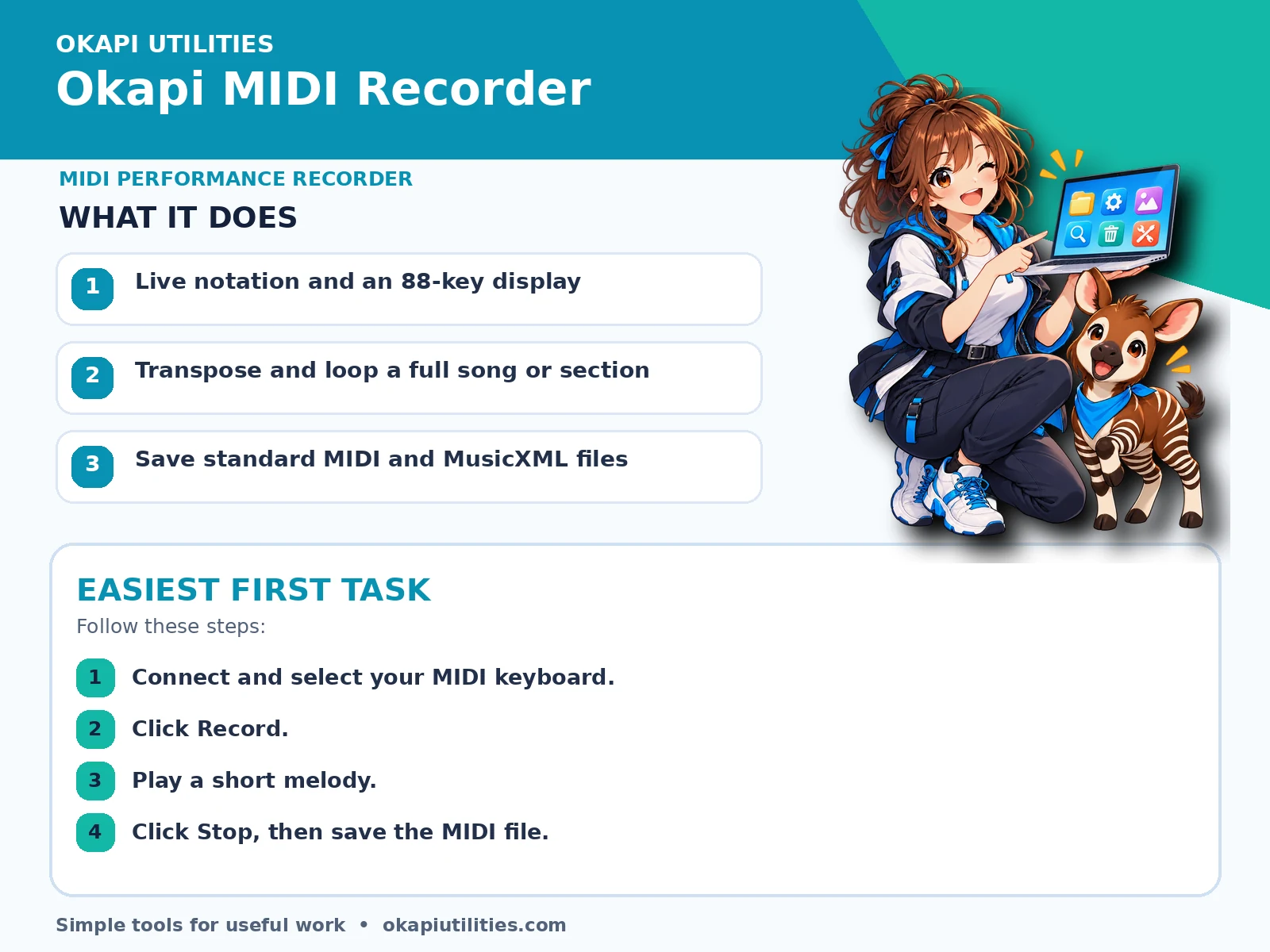
VISUAL QUICK GUIDE
Anime Quick Guide
Main features and the easiest first task, on one printable sheet.
03
What each main feature does
Use this feature as part of the numbered workflow above. Review the on-screen result before saving, downloading or continuing.
Use this feature as part of the numbered workflow above. Review the on-screen result before saving, downloading or continuing.
Use this feature as part of the numbered workflow above. Review the on-screen result before saving, downloading or continuing.
04
Save or export your work
Save wanted takes before exiting; the program warns when unsaved work remains.
05
Troubleshooting
- If a button does nothing, complete the earlier steps and make sure the required file or device is selected.
- For Windows programs, close and reopen the program after connecting a new device.
- Use Help inside the program for control-by-control guidance.
- Record a short test before a long performance.
Your files stay on your device unless the app clearly tells you that an upload is required.