01
Before you start
- Collect high-quality original images.
Windows installation: Download the customer ZIP from Payhip, extract it, open the Setup file and follow the installation prompts.
02
Step-by-step
- 1
Choose an image or folder.
- 2
Set square output size.
- 3
Choose white padding and JPEG quality.
- 4
Enter a filename prefix.
- 5
Export and inspect the copies.
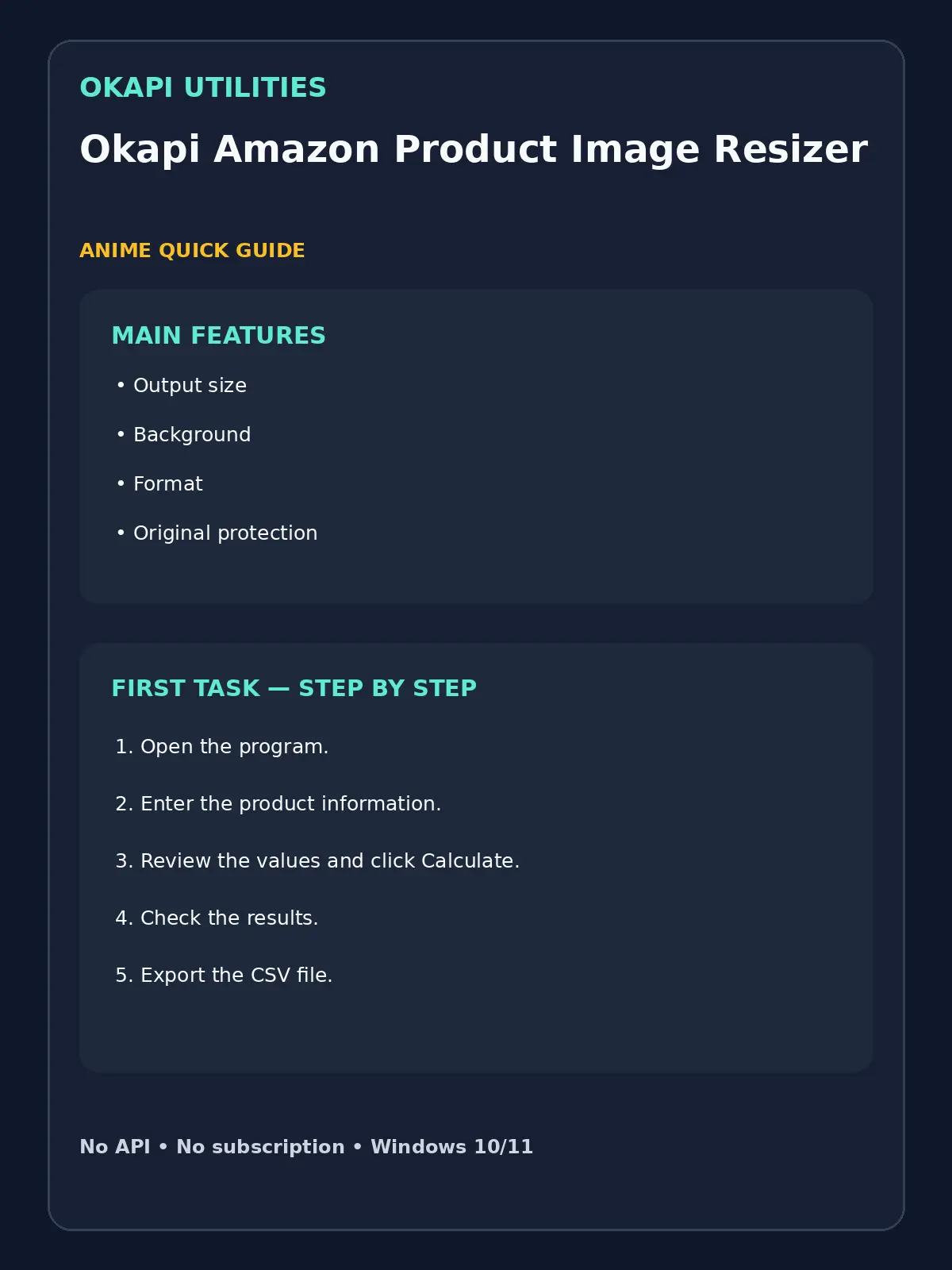
VISUAL QUICK GUIDE
Anime Quick Guide
Main features and the easiest first task, on one printable sheet.
03
What each main feature does
Use this feature as part of the numbered workflow above. Review the on-screen result before saving, downloading or continuing.
Use this feature as part of the numbered workflow above. Review the on-screen result before saving, downloading or continuing.
Use this feature as part of the numbered workflow above. Review the on-screen result before saving, downloading or continuing.
04
Save or export your work
Originals remain unchanged.
05
Troubleshooting
- If a button does nothing, complete the earlier steps and make sure the required file or device is selected.
- For Windows programs, close and reopen the program after connecting a new device.
- Inspect the product edges and color.
Your files stay on your device unless the app clearly tells you that an upload is required.